


Club Penguin Journey: Tips & Tricks Every Player Should Know

Ave Templaria!
Lifehack alert! Club Penguin Journey features several unique additions that can enhance your gameplay experience. Through quality-of-life updates, customization options, and more, there are always new things to discover around the island. In this guide, we’ll cover a variety of tips, tricks, and helpful mechanics to help you get the most out of Club Penguin Journey while expanding your knowledge of the game.
If you like this guide, check out our Discord server for more Club Penguin Journey content!
- Club Penguin Journey Stamp Tracker
- Club Penguin Journey Pin Tracker
- Club Penguin Journey Unlockable Codes Guide
- Club Penguin Journey Hidden Game Secrets
- Club Penguin Journey Penguin Style Secrets
- Club Penguin Journey Sports Catalog Secrets
Content
- Crowdsurfing
- Sitting on Doors or Exits
- Throw Snowballs Fast
- Emoji Keybinds
- New Chatlog
- Hide User Interface
- Full Screen Mode
- Low Quality Mode
- Taking Screenshots
Quality of Life Tips
While Club Penguin Journey has held onto many classic features from the original Club Penguin, new features are implemented all of the time to enhance your experience online! These additions not only make life on CP Journey more convenient, but also stay true to the Club Penguin identity that players know and love. While you may already be familiar with some of these features, we hope these tips help you discover new ways to make the most of them.
Crowd Surfing
Ask any player, the release of a new party, pin, or a mascot visit, often leaves rooms packed full and hard to walk through! Don’t you hate when groups of penguins are standing directly on top of a free item you are trying to collect? While this first tip doesn’t resolve the issue, it makes it much easier to move through crowds of penguins.
By pressing and holding alt on your keyboard, you are able to click and move over crowds of penguins in the game.
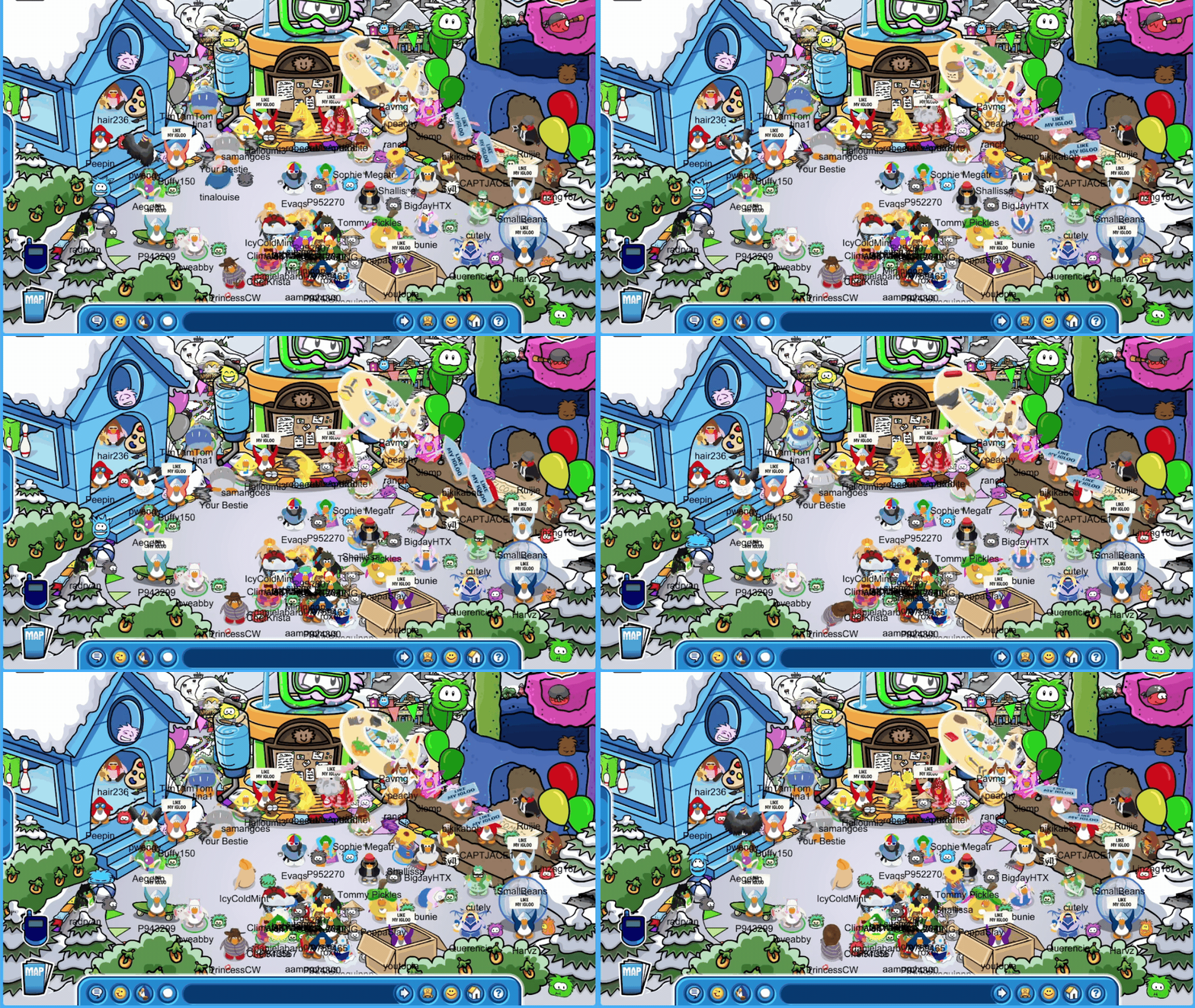
You can now officially “crowd surf” and access anything blocked by another penguin!
Sitting on Doors or Exits
Do you ever see other penguins sitting on doors or exits? How can they do that without instantly leaving the room? It isn’t as uncommon as you’d think, and no, it doesn’t involve any cheating or hacking. It’s actually really simple!

Start by moving away from the door or exit you’d like to sit on. This next step requires you to act fast! Click on the place you’d like to sit and immediately click on either the newspaper or postcard icon at the top of your screen. With either of these open, your penguin won’t exit the room even if you are moving towards a door! Wait a few moments and you’re free to click out of whatever you opened. You’ll now be standing on the exit!

You are free to sit, dance, and chat as you normally would! You aren’t trapped in this spot either, so you can walk away and exit the room any time you’d like.
Throwing Snowballs Really Fast
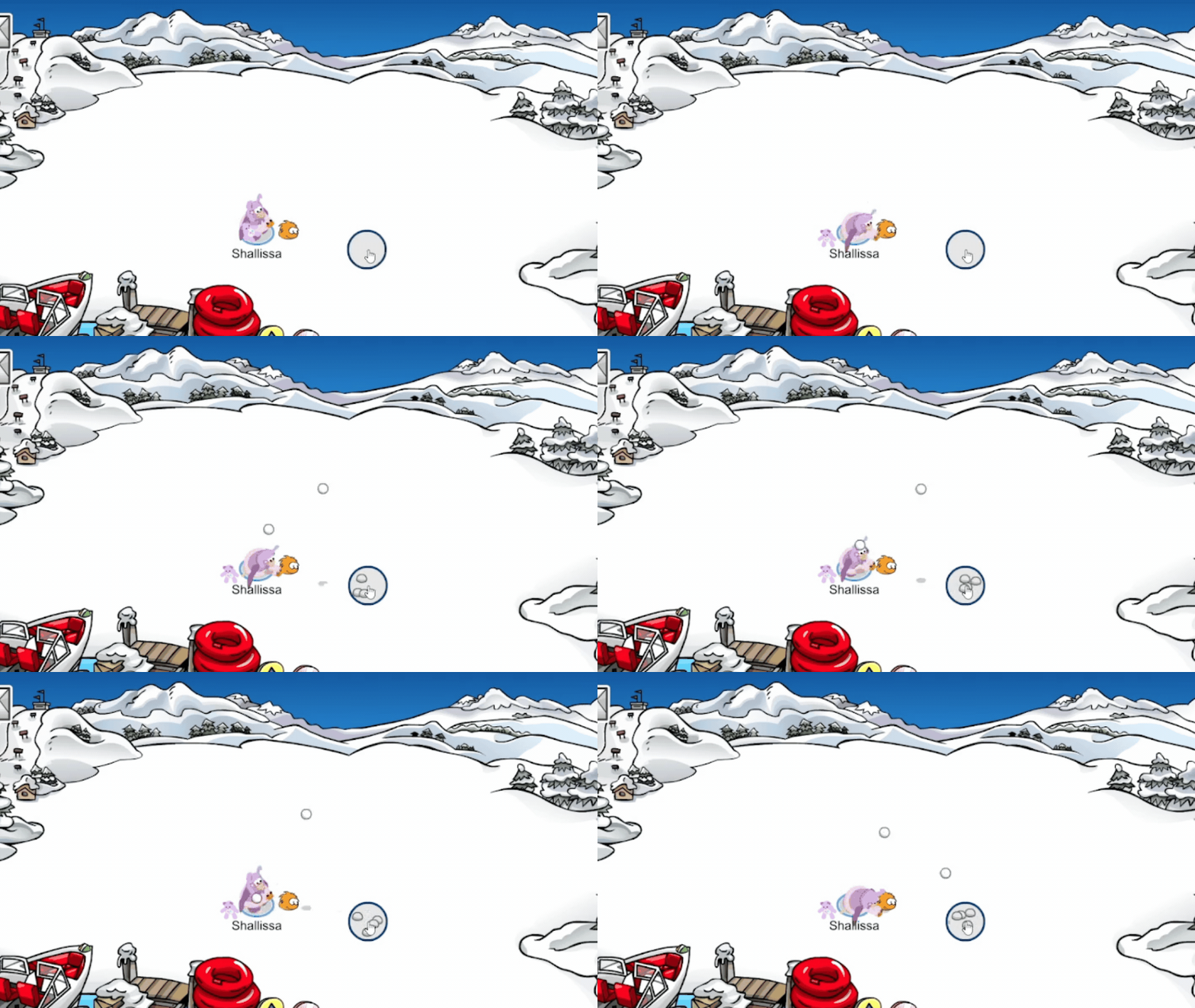
This tip is guaranteed to help you win your next snowball fight. Hold T on your keyboard and spam click to throw tons of snowballs very quickly!
Emoji Keybinds
Did you know that most Club Penguin Journey emojis can be sent using different key combinations? We have created an emoji cheat sheet to help you out the next time you’re chatting online!

New Chatlog
Over the past year, Club Penguin Journey has implemented an optional alternate chatlog following feedback from it’s player base. Let’s go over the changes and now to use it in game!
Old Versus New
The original Club Penguin featured a chat log that could be accessed through a click + pull-down tab at the top of the screen. This remains the default chat option in Club Penguin Journey. Everything visible through this chat log is temporary, as new messages will soon take the place of old ones shown in the log. Many players continue to enjoy this old chat log, as it offers more privacy during conversations and keeps other players active during conversations so they don’t miss anything!
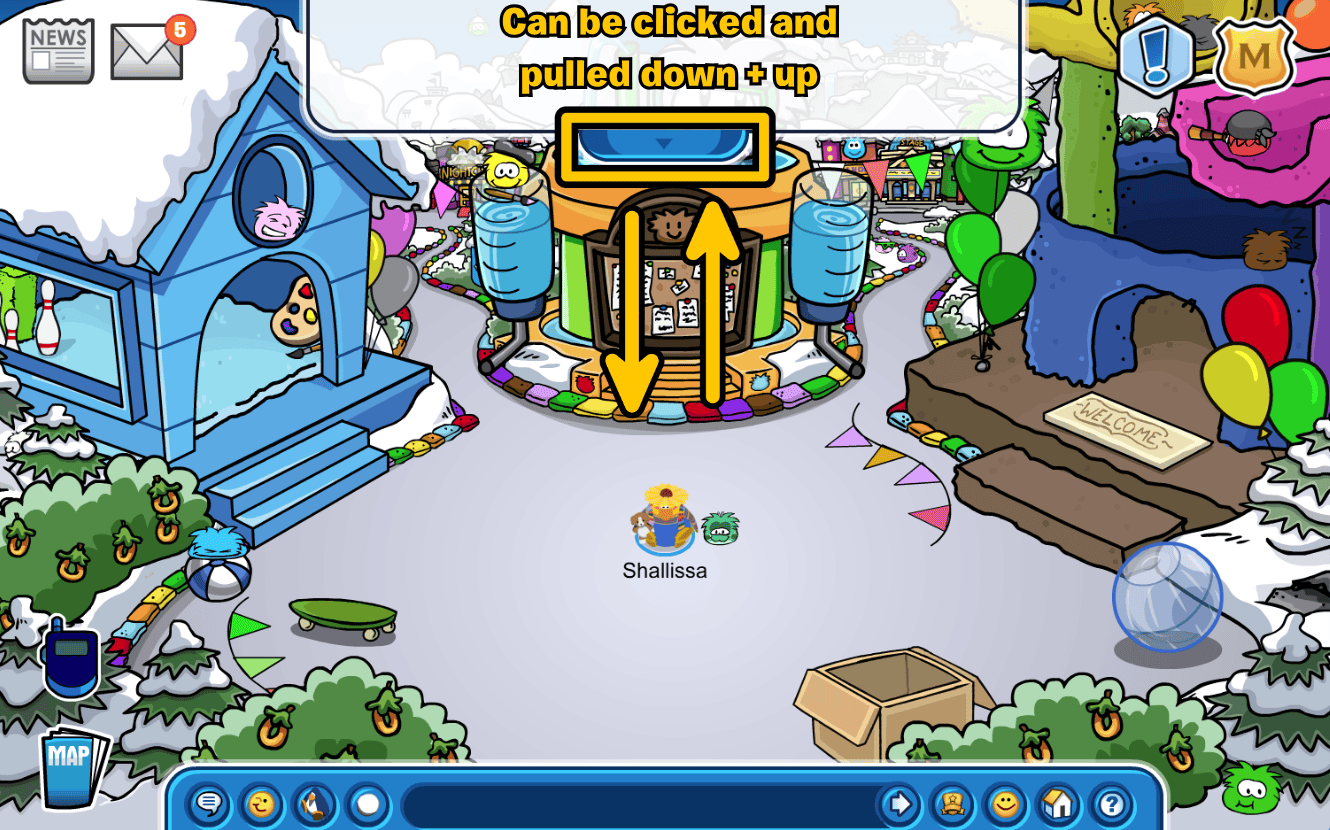
Club Penguin Journey’s new chat bar stays faithful to the original design, with the main differences being its location and function. It is now accessed on the right side of your screen, allowing you to view a larger amount of chat history without blocking the center of the screen. While the traditional chat bar at the bottom of the screen is still available, it disappears when the new chat log is opened, with the input field instead moving to the bottom of the new chat log. There is an option in your settings to swap the chatlog to the left side if you’d prefer it there.

As mentioned earlier, this alternate chatlog is completely optional! If you’d like to try it out, you can access the option through your game settings (accessed through the question mark at the bottom of the screen). Enabling the new chatlog will require you to relog into the game.
Hide User Interface
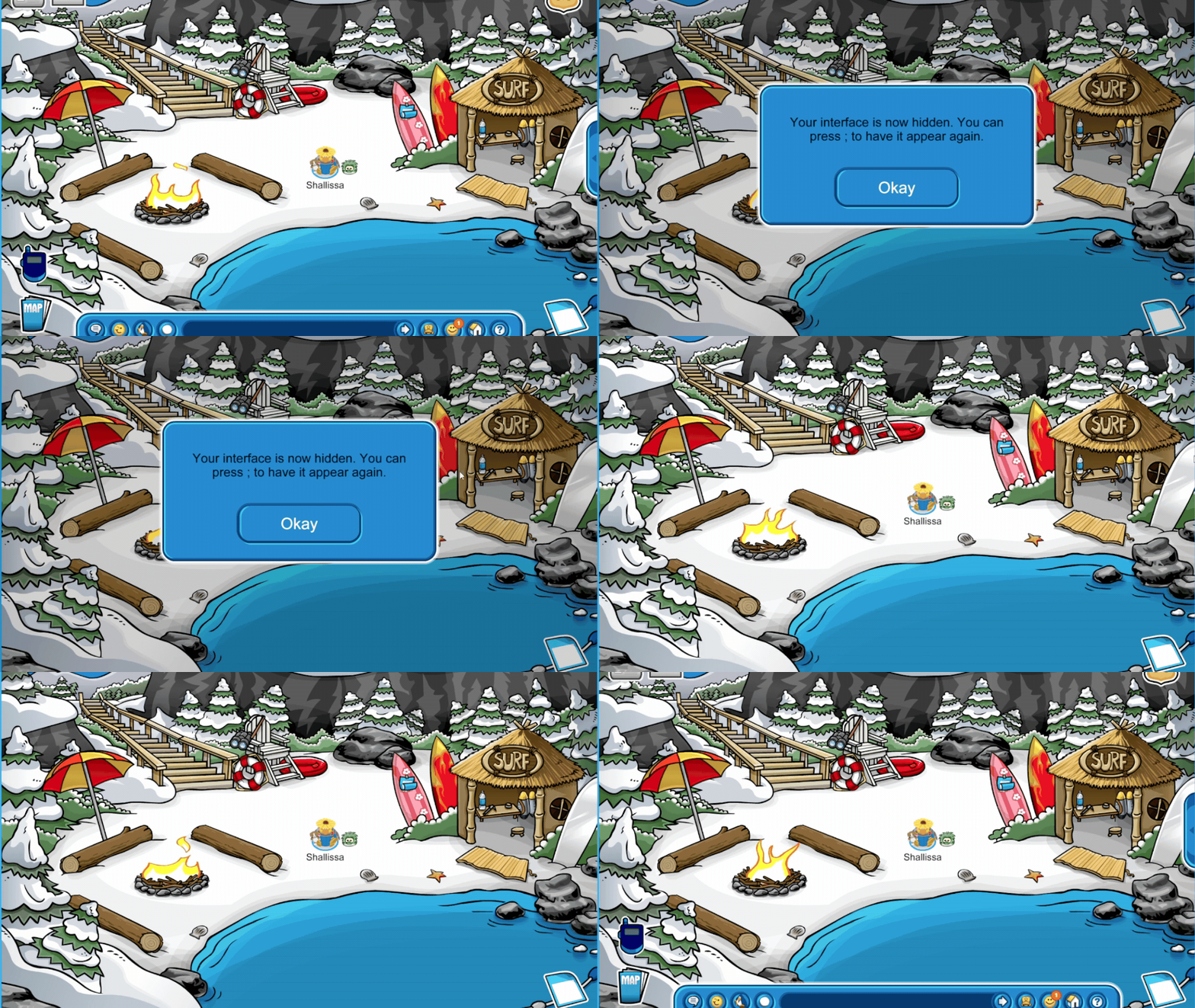
Features such as the moderator, newspaper, map, and postcard icons, along with the chat bar make up the user interface (UI)! If you’re anything like me, sometimes these can be overstimulating. I recently learned that the UI can quickly be disabled and enabled by clicking the “;” symbol on your keyboard! Now you have an easy way of clearing your screen of any features you don’t wish to see!
Full Screen Mode
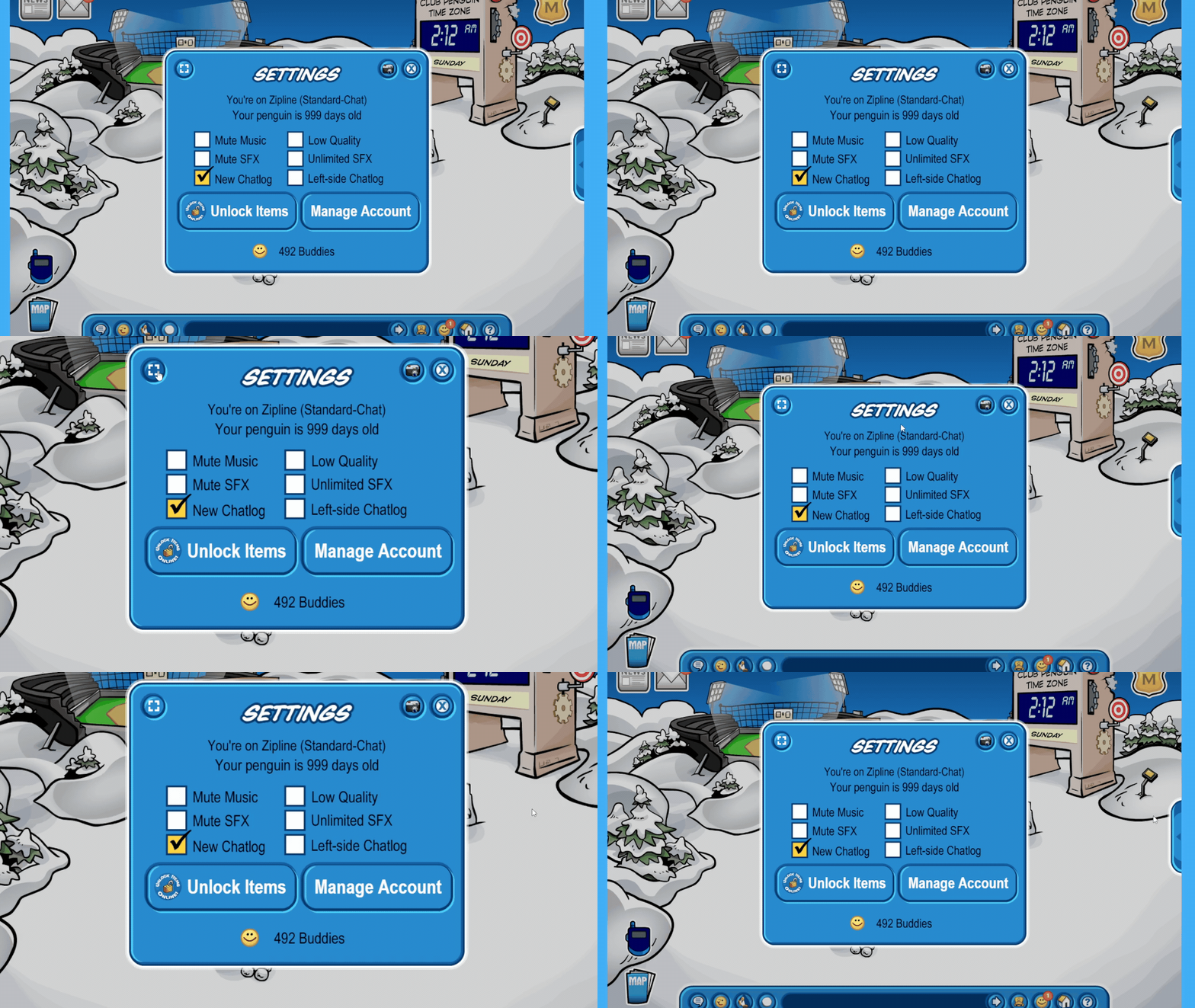
Within the top left of the settings menu, there is a box icon that allows you to open full screen mode. Once it’s open, simply press the same icon again or “Esc” on your keyboard to close it and return to the normal browser interface.
Low Quality
If Club Penguin Journey is slow or lagging on your device, the low quality option may help! The feature is exactly what it says it is, it lowers the quality of the game to help it run better. Enabling this setting requires the game to restart, meaning you will need to relog to enable it. Due to this, I don’t recommend enabling this feature after you’ve sat through a 100 penguin queue…. It’s best to try it out on a quieter server first so you can quickly log back on.
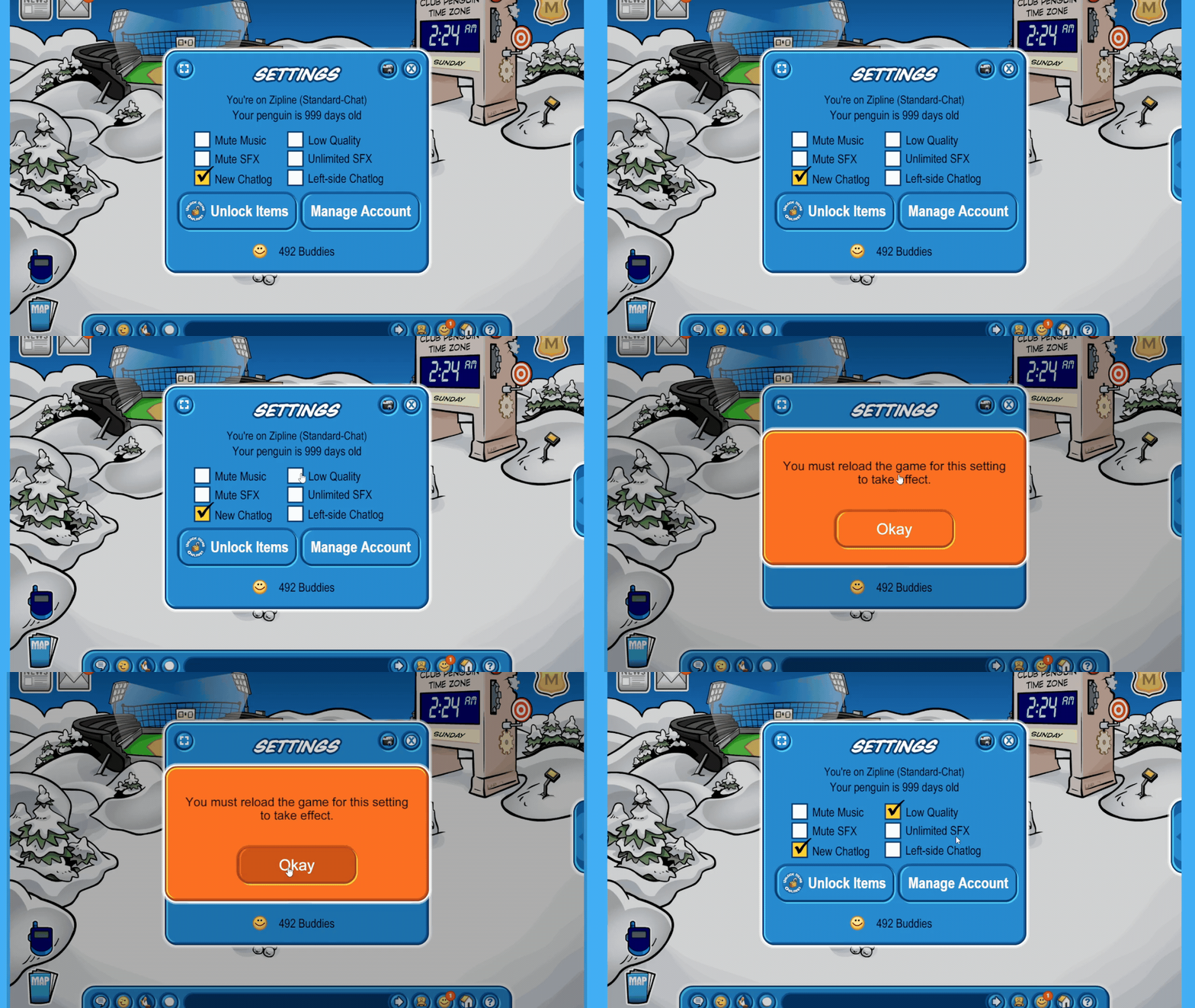
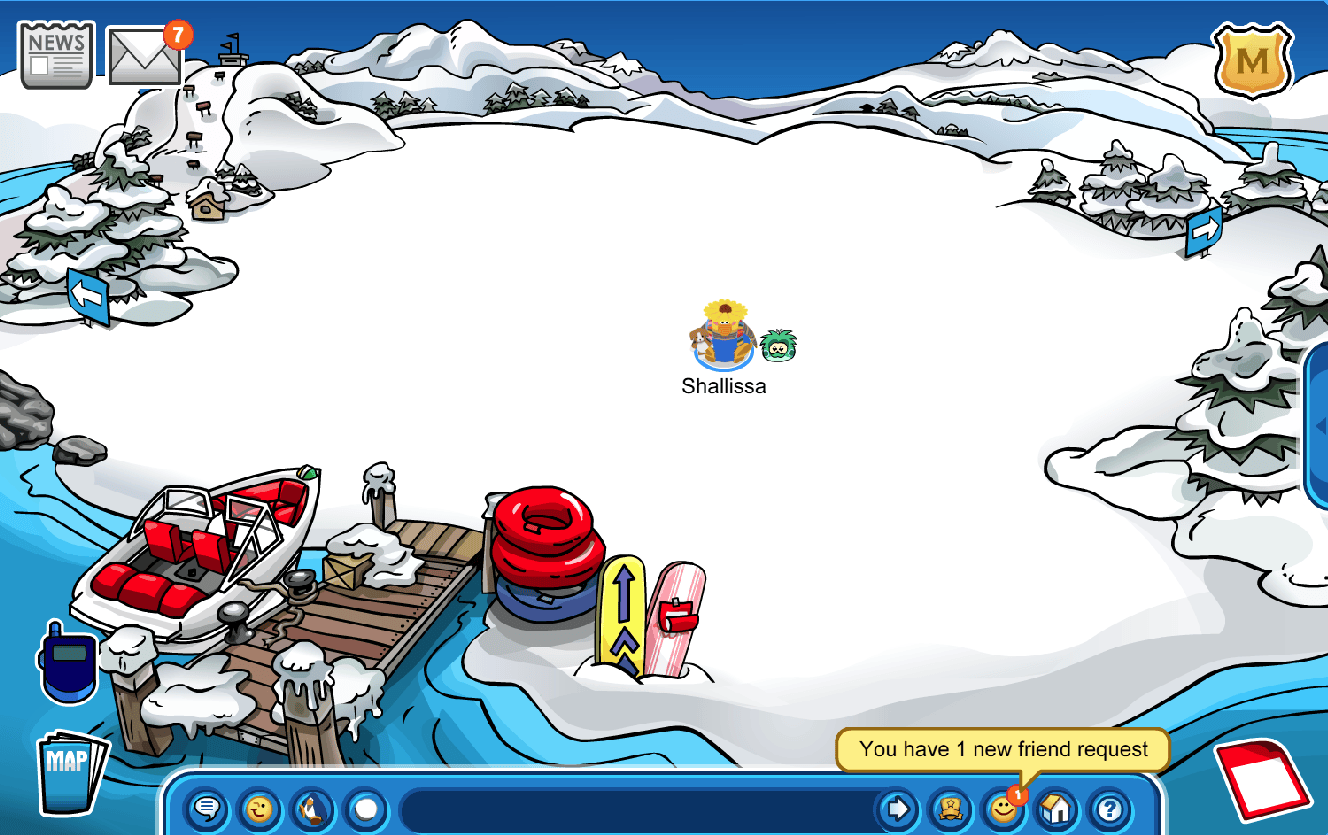
Once you have logged out, you should instantly notice a change in how Club Penguin Journey appears on the login screen The low quality changes will follow into the game. If you wish to turn it back off simply unclick the same setting and relog.
Low Quality Mode: Minigames
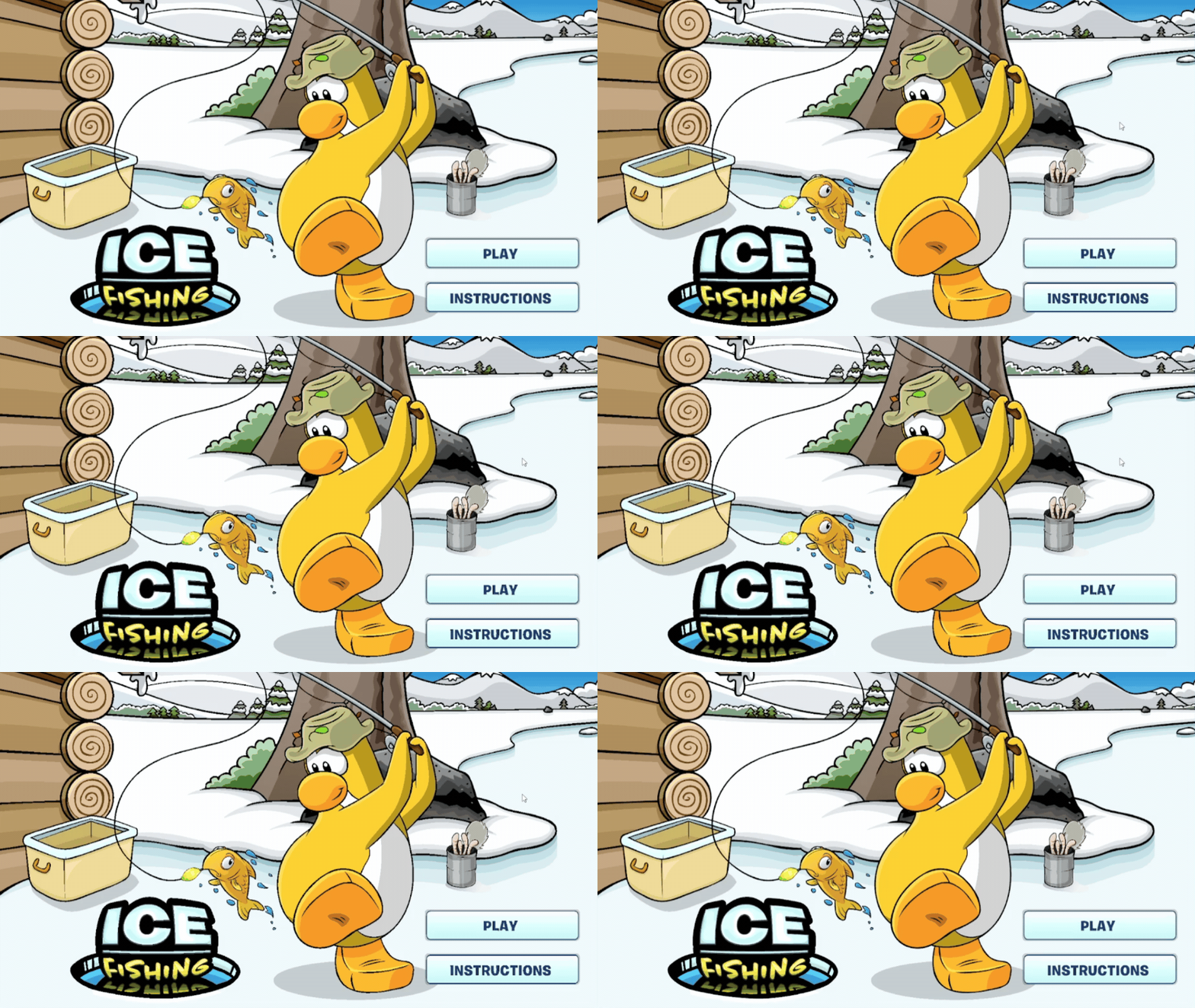
Minigames also feature a low quality mode! If you find your game lagging while playing, you can press +, – , or = to lower the minigame graphics. The change is subtle but it makes a huge difference.
Note: Card-Jitsu and Infinite Tower do not have a low quality mode.
Taking Screenshots
Within the settings menu, there is an option to take two different types of screenshots! Simply open your settings menu and click on the camera icon near the top right of the menu. Once you’ve clicked the icon, the game will ask you if you’d like to “Hide interface and penguins“. If you click “Yes” a full screenshot of the room, excluding all penguins and your user interface will be downloaded to your computer. If you select “No“, a regular screenshot of the room, featuring penguins and your user interface will be downloaded to your computer.
Note: Regardless of which option you choose, your screenshot will include room features such as new pins.
“Yes” Option

“No” Option

File Name
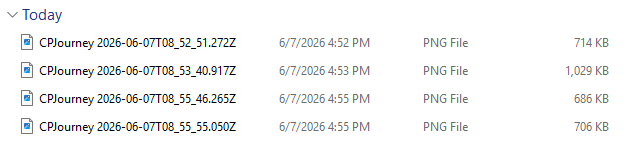
Any screenshots you take will be saved to your downloads folder in a standardized format including “CPJourney” and the current time & date in Iceland? Girl I have no clue, maybe that’s where the servers are hosted? Regardless, the screenshots will be easily identifiable in your downloads folder. If you wish to hold onto them long term I recommend renaming them and adding them to a new folder.
Customization Tips
Club Penguin Journey has enhanced its penguin and igloo customization options to give players even more creative freedom! Several categories of clothing items can be layered onto your penguin to create cute outfits. Your igloo’s furniture can be layered as well, giving you greater control over your igloo’s style.
Clothing Layering
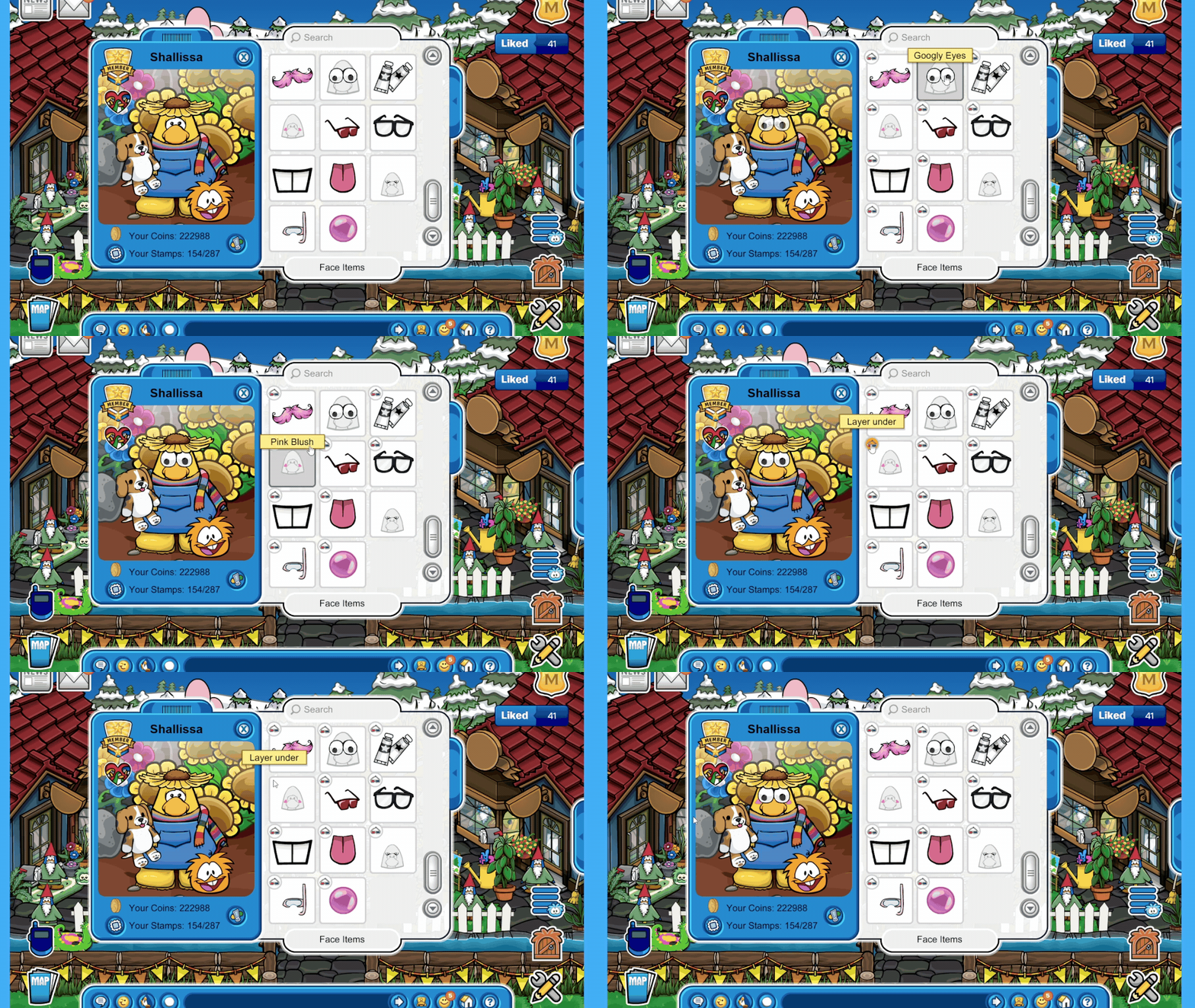
This is by far one of my favorite Club Penguin Journey additions. Multiple face, neck, head, body, and hand items can be stacked or “layered” onto your penguin to style different looks. This means that you can wear two face items at once, both eyelashes and blush. You can wear a cute top and a cozy cardigan. You’re even free to wear socks with sandals (although this is cursed).
In this example, I wanted my penguin to wear both the Googly Eyes and the Pink Blush.
Step One: Find the two items you’d like to combine. In this example, I wanted my penguin to wear both the Googly Eyes and the Pink Blush.
Step Two: As shown in the GIF below, I started by equipping the Googly Eyes. Once they were on, a small sunglasses icon appeared next to each item in the Face category.
Step Three: Then I clicked the icon beside the Pink Blush, which layered it underneath the Googly Eyes.
Just like that, my penguin was wearing both items at the same time!
Furniture Layering
Furniture layering works in a similar way, but it requires a bit more precision. This feature allows you to place one furniture item on top of another, opening up all kinds of creative decorating possibilities. Whether you’re placing items on tables or putting flowers into pots, there are countless combinations to experiment with.
In this example, I wanted my Teddy Bear to sit on top of an Inflatable Dragon.
Step One: To start, I positioned the Inflatable Dragon exactly where I wanted it to be.
Step Two: Then, I’ll brought out my Teddy Bear and placed him as close as possible to the spot where I wanted him to sit.
Step Three: Once both items are in position, they be ready to be layered together.
Step Four: Right click the item you’d like to move, and a set of arrows will appear. The up arrow moves the item toward the back of your igloo, while the down arrow moves it toward the front.
Step Five: As shown in the GIF below, I used the down arrow to bring the Teddy Bear closer to the front of the igloo. After a few clicks, he lined up perfectly with the Inflatable Dragon and appeared to be sitting right on top of it!

Edit Stampbook
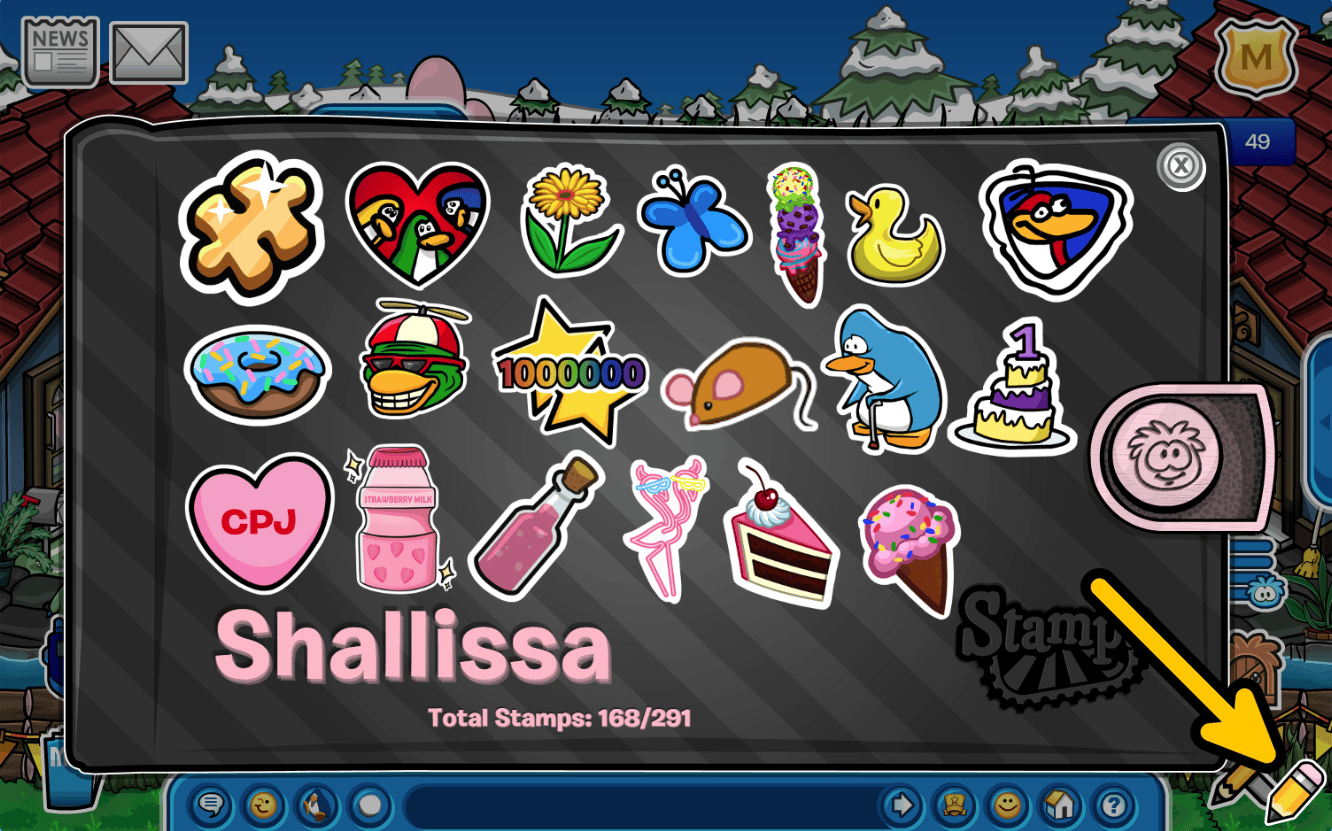
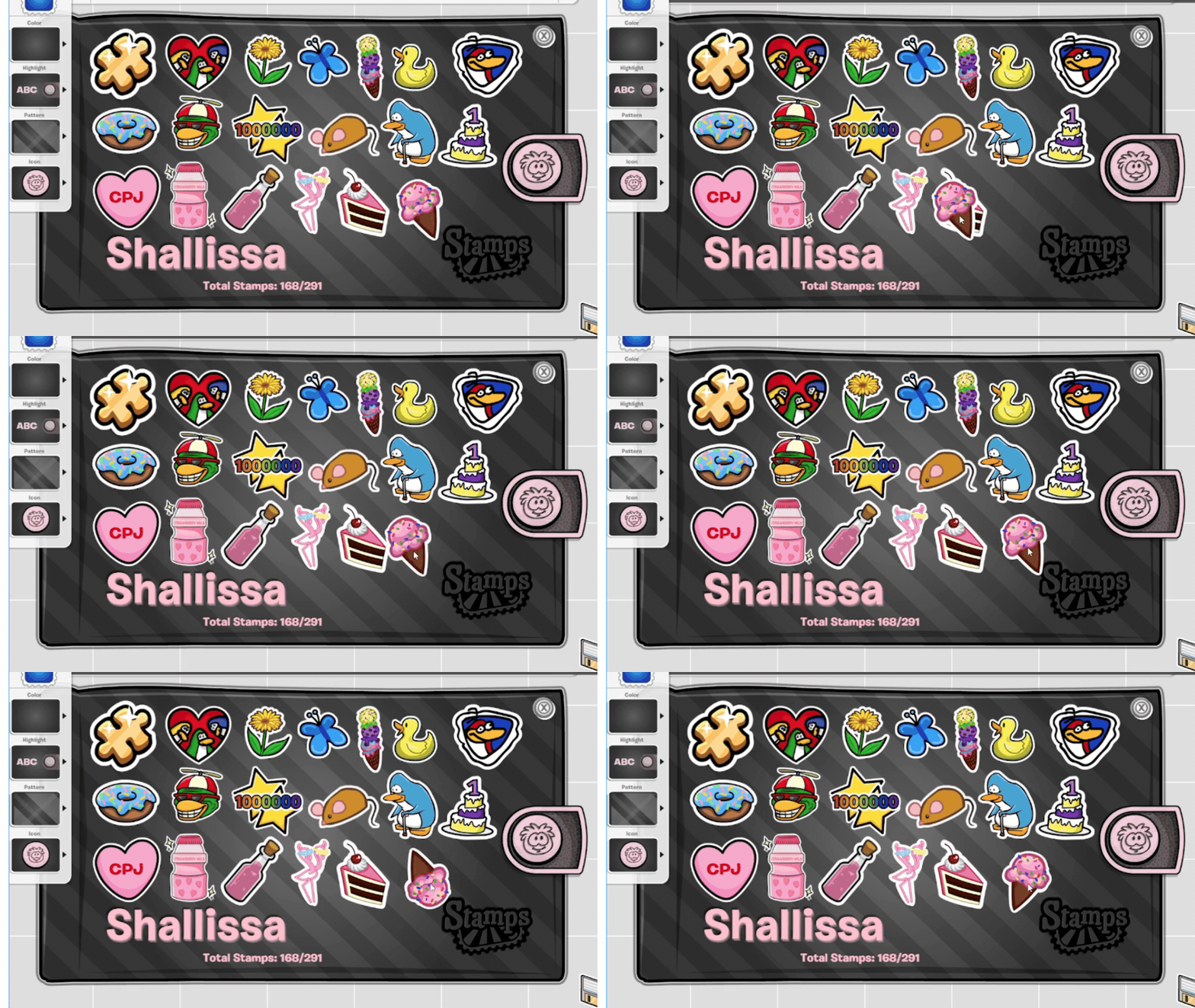
You can decorate your stampbook with each pin and stamp you collect while playing. All you need to do is open it and click the pencil at the bottom right corner of your screen. Once inside, you can layer items by dragging them on top of one another. You can also rotate items by using the left and right arrow keys! Click save at the bottom right of your screen to save your design once it’s complete!
I hope you enjoyed this guide on Club Penguin Journey’s best tips and tricks! As new features continue to be added to the game, I’m sure this post will be updated in the future to include more CP Journey lifehacks. For now please continue to enjoy the game and get the most out of your experience! Hopefully this guide taught you some new helpful hints that can make things easier next time you play! I’ll see you next time!


Super helpful guide!! That crowd surfing hack is a LIFE SAVER 🩵